
Discover how to find IP address for any device in seconds. A complete guide for Windows, Mac, & Mobile + an instant Public IP check tool.
An IP address is a unique numerical label assigned to every device connected to a computer network, acting like a digital home address.
In my 10 years of troubleshooting enterprise networks and home Wi-Fi setups, I have learned that knowing how to find IP address details is the single most critical skill for solving connectivity issues. whether you are setting up a Minecraft server, configuring a printer, or troubleshooting why your internet is slow, the IP address is your starting point.
It is important to understand the two main types you will encounter:
- IPv4 (Internet Protocol version 4): The standard format you are likely used to seeing (e.g.,
192.168.1.1). - IPv6 (Internet Protocol version 6): The newer, longer alphanumeric format designed to replace IPv4 as we run out of addresses.
There is also a crucial distinction between your Private IP (used only inside your home network) and your Public IP (how the rest of the internet sees you). This guide covers how to find both.
Your Public IP Address (Instant Tool)
Your Public IP address is the unique ID assigned to your home network by your Internet Service Provider (ISP).
Your Public IP Address
Click the button to check your IP.
If you are looking for the address that websites use to identify you, look no further than the tool placeholder above. In a real-world scenario, simply visiting a “What is my IP” page reveals this instantly. This is the address you need if you are trying to whitelist your home network for remote access or if you are checking to see if your VPN is working correctly.
However, if you need to configure a specific device inside your house (like forwarding ports to a gaming PC), you need the Private IP, which we will find in the steps below.
How to Find IP Address on Windows 11 & 10
To find your IP on Windows, you can either view the Network status in the Settings app or run the ipconfig command in the Command Prompt.
As a technician, I almost always prefer the Command Prompt method because it is faster and gives you more data, but the Settings menu is more visual and user-friendly.
Method 1: The Settings App (Visual Interface)
- Click the Start button and select Settings (gear icon).

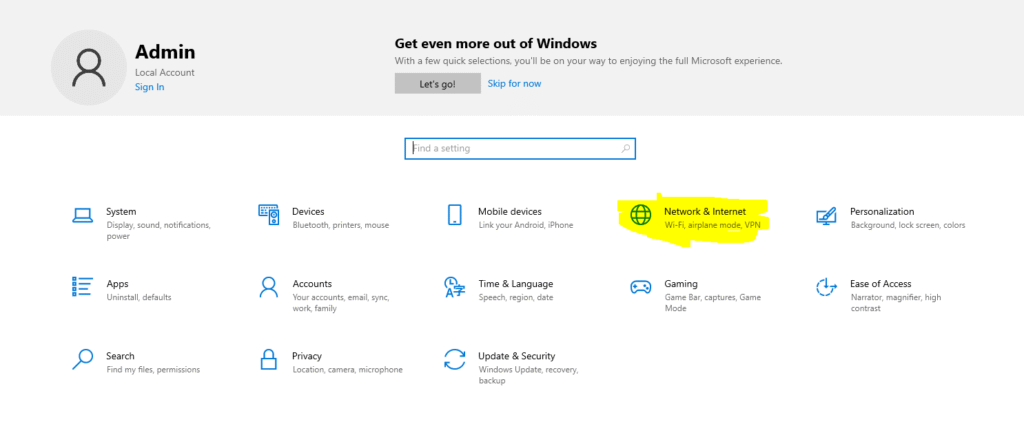
- Select Network & internet from the left-hand sidebar.
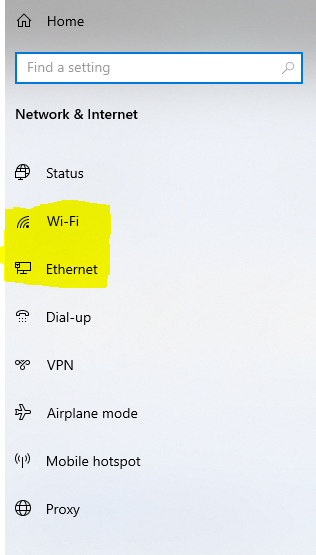
- Click on Wi-Fi or Ethernet, depending on how you are connected.
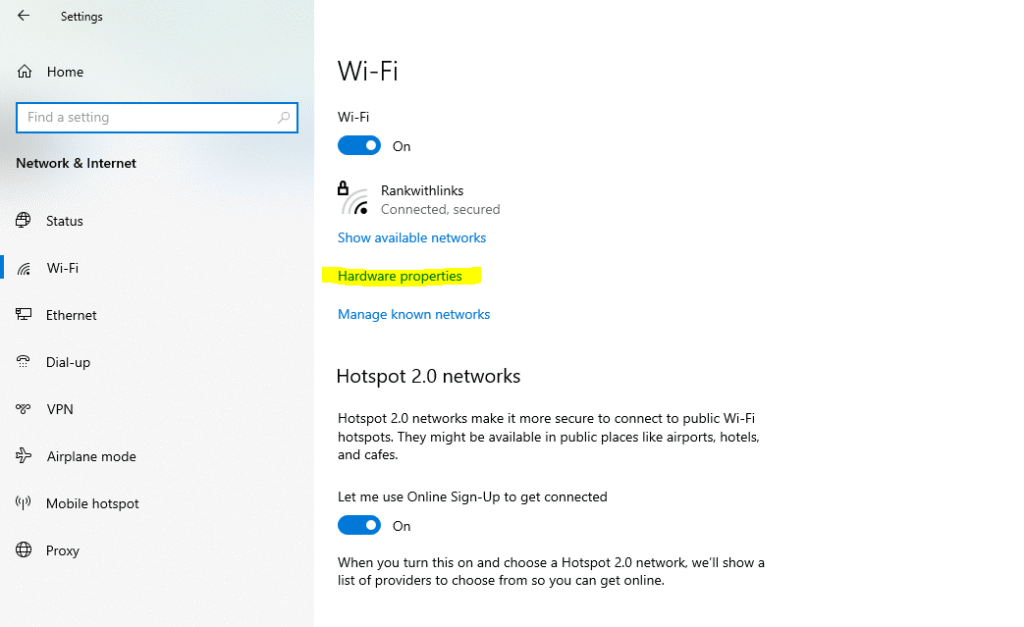
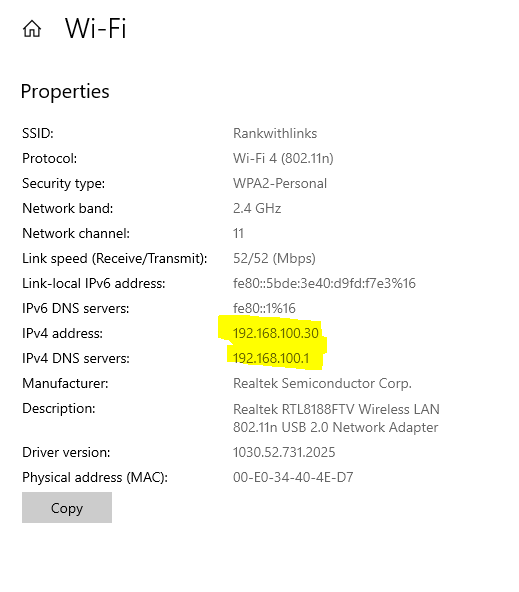
- Select Hardware properties (or simply click on the network name).
- Scroll down to the bottom of the page.
- Look for the field labeled IPv4 address. It will usually look like
192.168.x.x.
Method 2: Command Prompt (The Technician’s Choice)
- Press the Windows Key, type
cmd, and press Enter. - In the black window that appears, type the following command:
ipconfig - Press Enter.
- Scroll through the text until you see the section titled Wireless LAN adapter Wi-Fi or Ethernet adapter.
- Locate the line that says IPv4 Address. That is your device’s private IP.

Pro Tip: If you see an IP starting with
169.254.x.x, it means your computer failed to get an IP from the router (DHCP failure). This is a common issue I see when troubleshooting “No Internet” errors.
How to Find IP Address on macOS
Mac users can locate their IP address by checking the Network tab in System Settings or by running the ifconfig command in the Terminal.
Apple makes this information very accessible. In my experience, the System Settings route is sufficient for 99% of users, but the Terminal is powerful if you are scripting or need detailed network interface data.
Method 1: System Settings
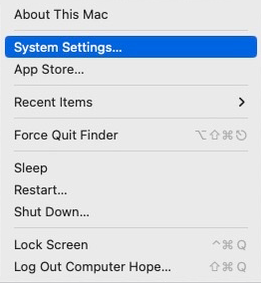
- Click the Apple Menu () in the top-left corner.

- Select System Settings (or System Preferences on older macOS versions).
- Click Network in the sidebar.
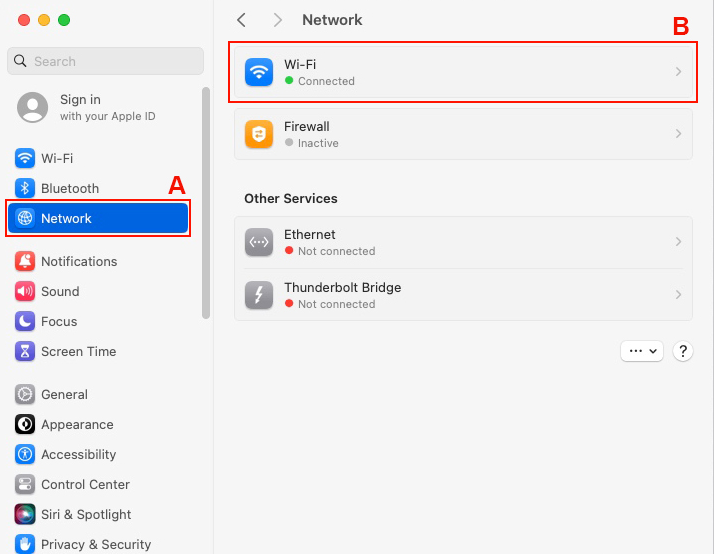
- Select your active connection (Wi-Fi or Ethernet), which will have a green dot next to it.
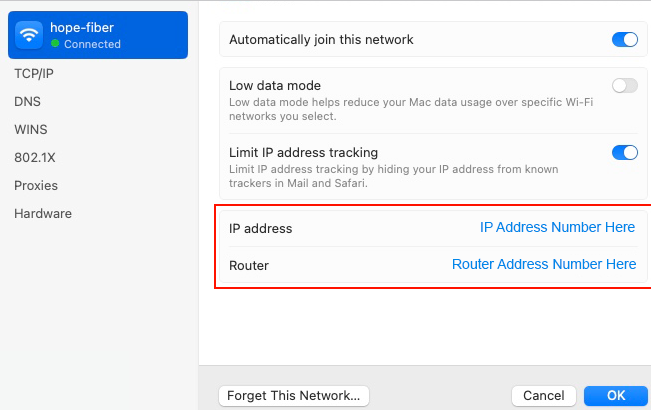
- Click the Details… button.

- Click TCP/IP in the sidebar of the popup window.
- Your IP Address will be listed clearly at the top.
Method 2: The Terminal (ifconfig)
- Press Command + Space to open Spotlight Search.
- Type
Terminaland press Enter. - Type the following command:
ifconfig | grep "inet "(Note: Thegreppart filters out unnecessary info, showing only IP lines). - Look for the IP address usually found under
en0(Wi-Fi). It generally sits next to the wordinet(e.g.,inet 192.168.1.15).
How to Find IP Address on Mobile (iPhone & Android)
Mobile devices display their local Wi-Fi IP address deep within the Wi-Fi settings menu of your specific operating system.
Finding an IP on mobile is vital when you are troubleshooting why your phone won’t cast to your TV or connect to local smart home devices.
finding IP on iPhone (iOS)
- Open the Settings app.
- Tap on Wi-Fi.
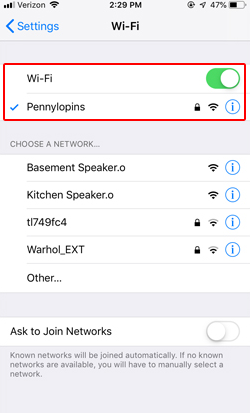
- Find the network you are currently connected to (it will have a blue checkmark).
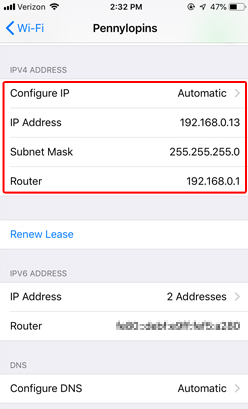
- Tap the blue “i” (Information) icon next to the network name.
- Scroll down to the “IPv4 Address” section. Your IP Address is listed there.
Finding IP on Android
(Note: Menus may vary slightly by manufacturer, but these steps apply to most Samsung and Pixel devices).
- Open Settings and tap Network & internet or Connections.
- Tap Wi-Fi.
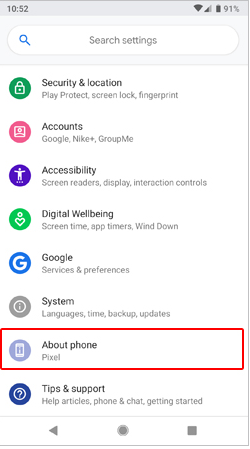
- Tap the gear icon next to your current network name.
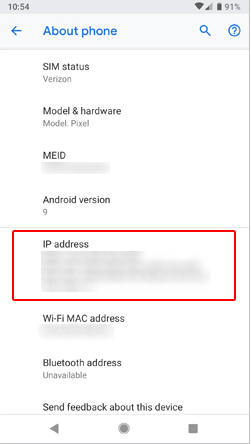
- Tap View more or Advanced if the IP isn’t immediately visible.
- Scroll down to find IP address under network details.
Advanced: Finding Router and Network Device IPs
The router’s IP address (Default Gateway) is the bridge between your home network and the internet, while network scanners help you find other devices.
How to Find Your Router’s IP (Default Gateway)
If you need to log into your router to change your Wi-Fi password, you need its IP.
- Windows: Run
ipconfigin CMD again. Look for Default Gateway. That IP (often192.168.1.1or192.168.0.1) is your router. - Mac: Go to System Settings > Network > Details > TCP/IP. Look for Router.
How to Find Another Computer’s IP on the Network
Sometimes I need to see what else is on a network—perhaps to find a wireless printer’s IP.
- Using Ping (If you know the hostname): Open CMD or Terminal and type
ping [hostname]. It will reply with the IP address. - Using ARP (Address Resolution Protocol): Type
arp -ain CMD or Terminal. This lists all devices your computer has recently “talked” to on the local network, displaying their IP and MAC addresses.
Frequently Asked Questions
Is my IP address private?
Your Private IP (e.g., 192.168.x.x) is completely hidden from the internet; only devices in your home can see it. However, your Public IP is visible to every website you visit. It is not private information in the strictest sense, but it is unique to your connection.
Can someone find my house with my IP address?
Generally, no. An IP address maps to a geographical region, usually the city or zip code of your Internet Service Provider’s local hub, not your specific street address. While it gives a general location, it cannot pinpoint your front door unless the person has a subpoena to ask your ISP for that data.
Why does my IP address keep changing?
Most residential ISPs use Dynamic IP addressing. This means they lease an IP to you for a set period. If you restart your modem or if the lease expires, you may get a new one. If you need it to stay the same (for hosting a server), you should request a Static IP from your ISP.
What is the difference between IPv4 and IPv6?
IPv4 uses a 32-bit address scheme allowing for 4.3 billion addresses, which we have effectively exhausted. IPv6 uses 128-bit addresses, allowing for a virtually infinite number of devices. Modern operating systems prioritize IPv6, but IPv4 remains the standard for most local home networking tasks.
Conclusion
Mastering how to find your IP address is the first step toward taking control of your digital life.
In my decade of experience working with networks, I have seen countless users frustrated by connectivity issues that were easily solved once they knew where to look. Whether you are port forwarding for a seamless gaming experience, troubleshooting a stubborn printer, or simply securing your home network, these numbers are the keys to the kingdom.
You now have the toolkit to locate your digital address on any device—Windows, Mac, iOS, or Android. Remember, while your Public IP connects you to the world, your Private IP connects your home. Understanding the difference doesn’t just make you more tech-savvy; it makes you the go-to troubleshooter in your own household.
So, the next time your internet acts up or you need to connect a new smart device, don’t panic. Open that Command Prompt or Settings menu, find your IP, and solve the problem like a pro.

Abdullah Zulfiqar writes about technology in a simple, practical way, helping readers stay updated and make smarter decisions in an ever-evolving digital world.