
So you want to delete all those embarrassing Google searches? Yeah, I get it. Google basically keeps track of everything you search for, and honestly, it can be pretty creepy when you think about it.
Don’t worry though – I’m gonna show you exactly how to get rid of all that stuff. It’s actually not that hard once you know where to look.
What’s This Google Search History Thing?
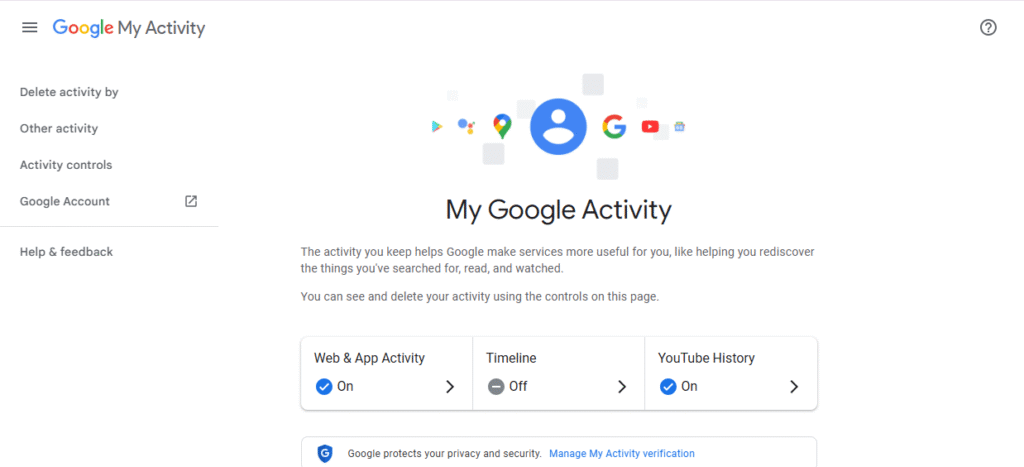
Okay, so here’s the deal. Every time you search for something on Google while you’re logged in, they save it. And I mean EVERYTHING. Like that time you searched for “how to get gum out of hair” at 2 AM, or when you looked up your ex’s new girlfriend (we’ve all been there).
Google calls this “Web & App Activity” and it includes:
- All your search queries
- Websites you clicked on from Google
- Stuff you did on Android apps
- Things you asked Google Assistant
- Where you were when you searched
Pretty much everything, right? Yeah, it’s a lot.
Why Would You Want to Delete This Stuff?
Look, there’s tons of reasons why you might want to clear this out:
Privacy stuff: Your search history shows way too much about your personal life. Like your health problems, money situation, relationship drama – basically everything you don’t want people knowing about.
Starting fresh: Sometimes you just want Google to stop suggesting weird stuff based on old searches. Trust me, one weird search can mess up your recommendations for months.
Other people using your computer: If your family or friends use your laptop, you probably don’t want them seeing what you’ve been searching for.
Just because: Sometimes you just want less of your personal info floating around the internet. Can’t blame you for that.
Method 1: Delete Everything from Google My Activity
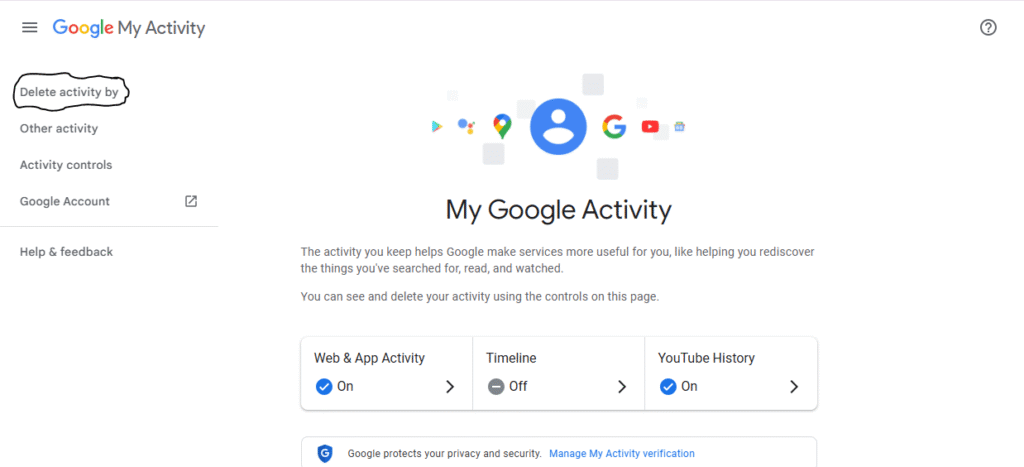
This is gonna be your main way to get rid of everything. It’s pretty straightforward once you know what you’re doing.
Here’s how to do it:
- Go to Google My Activity
- Type in myactivity.google.com in your browser
- Log in if you’re not already
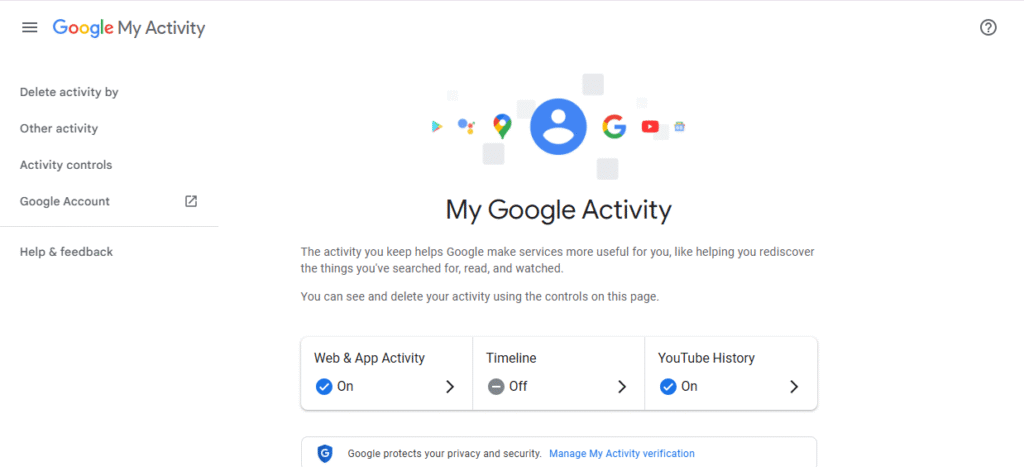
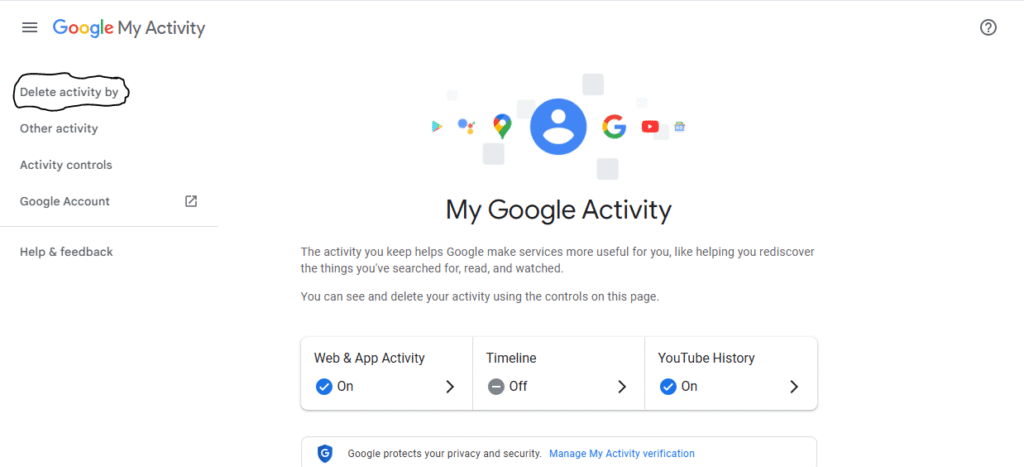
- Find the delete button
- Look on the left side for something that says “Delete activity by”
- Click on that
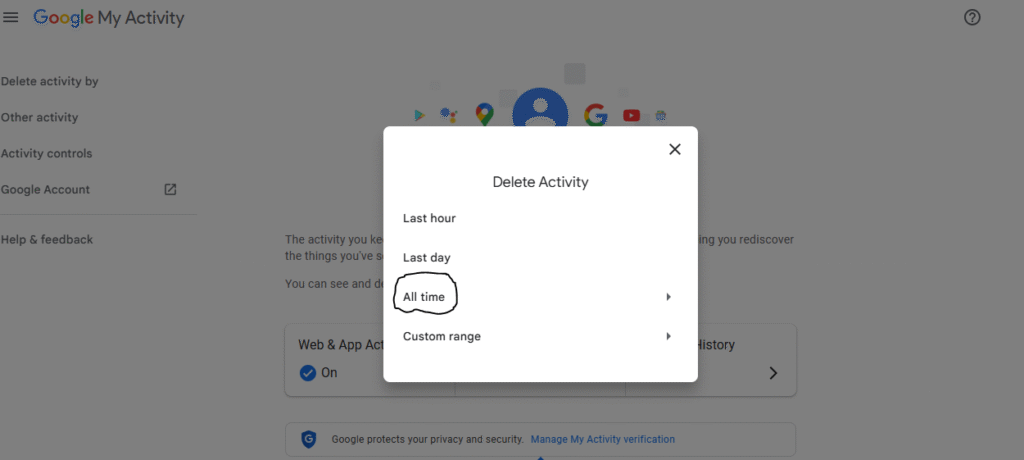
- Pick what time period
- You’ll see a dropdown menu – pick “All time” if you want to delete everything
- Or you can pick specific dates if you only want to delete some stuff
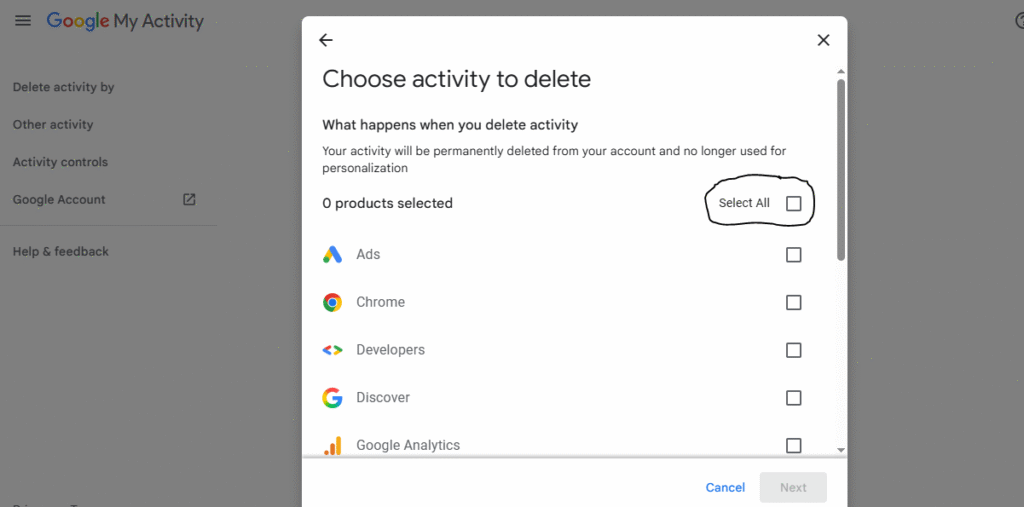
- Choose what to delete
- Select “All products” to delete everything from all Google stuff
- Or just pick “Search” if you only want to delete search history
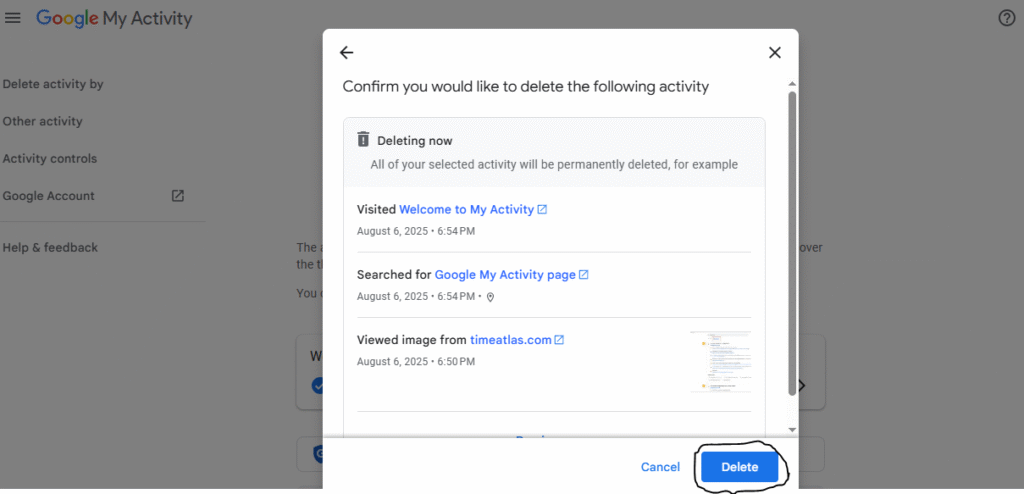
- Actually delete it
- Hit the “Delete” button
- Google’s gonna ask if you’re sure (they really don’t want you to do this)
- Click “Delete” again and you’re done
Quick way to do it:
There’s also a faster way if you don’t want to dig through menus:
- Go to myactivity.google.com
- Look for the search bar at the top
- Click the three dots next to it
- Pick “Delete activity by”
- Choose what you want and confirm
Method 2: Stop Google from Tracking You (Super Important!)
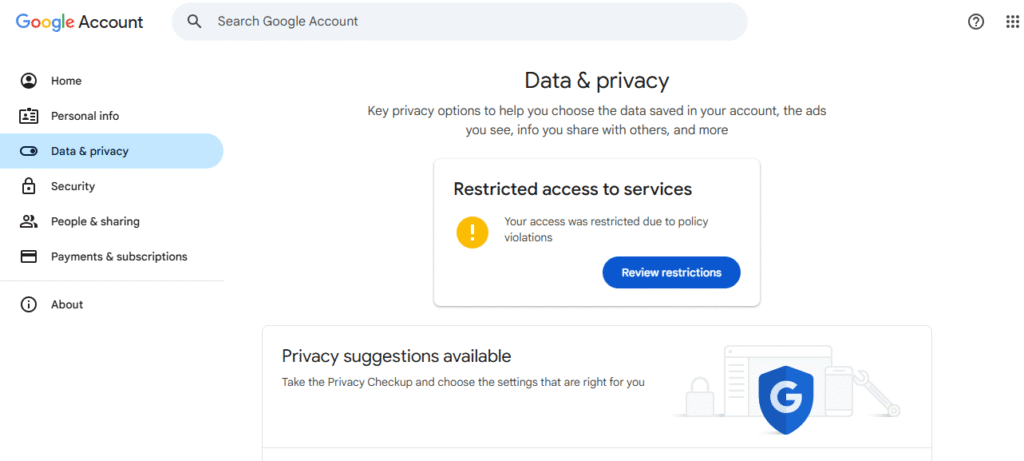
Okay, so deleting your old searches is great, but Google’s just gonna keep collecting new ones unless you tell them to stop. Here’s how to do that:
- Go to your Google Account settings
- Go to myaccount.google.com
- Click “Data & privacy” on the left
- Look for “Activity controls”
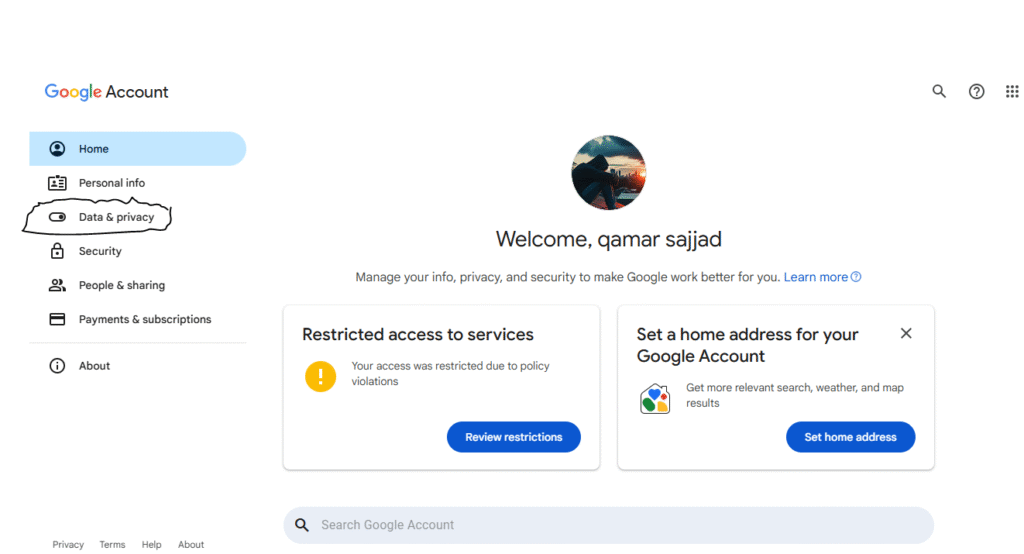
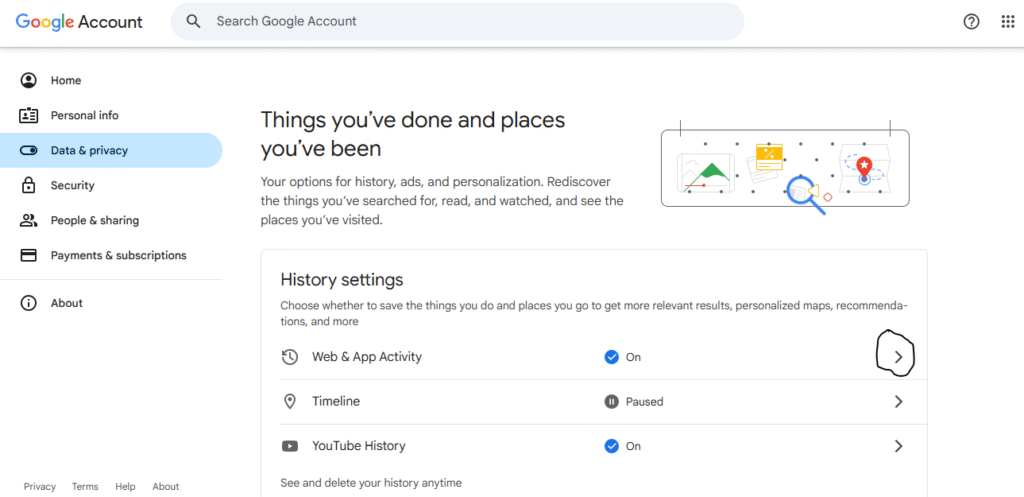
- Turn off the tracking
- Find “Web & App Activity”
- Turn that switch to “Off”
- Pick “Turn off and delete activity” if you want to delete old stuff too
- Confirm it
- Google’s gonna warn you that you’ll lose personalized results (honestly, that’s kinda the point)
- Click “Turn off” anyway
Method 3: Set It to Auto-Delete (Pretty Cool Feature)
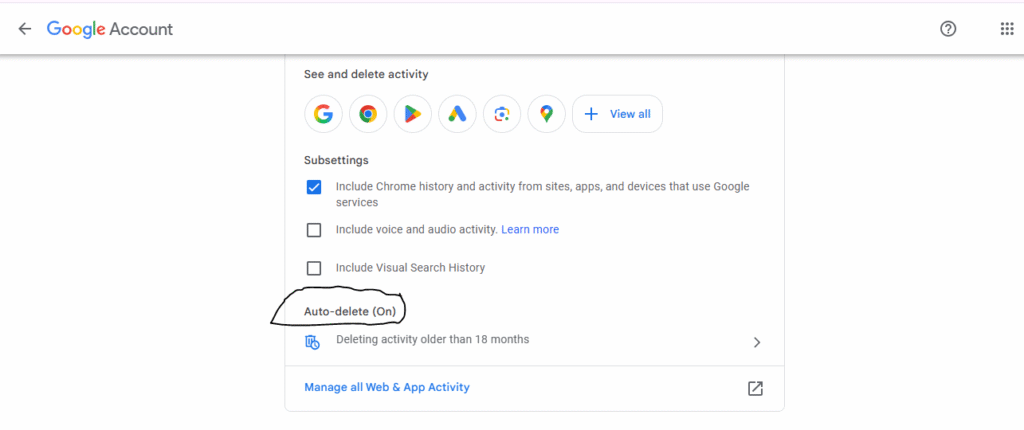
Maybe you don’t want to delete everything, but you also don’t want Google keeping your searches forever. There’s actually a middle ground – you can make it automatically delete old stuff.
- Go back to your Google Account settings
- Same place as before – “Data & privacy”
- Set up auto-delete
- Find “Web & App Activity” again
- Look for “Auto-delete”
- Pick how long you want to keep stuff:
- 3 months (pretty private)
- 18 months (decent middle ground)
- 36 months (still better than forever)
- Save it
- Pick what you want and hit “Save”
- Now Google will automatically delete old searches
Method 4: Clear Your Browser History Too
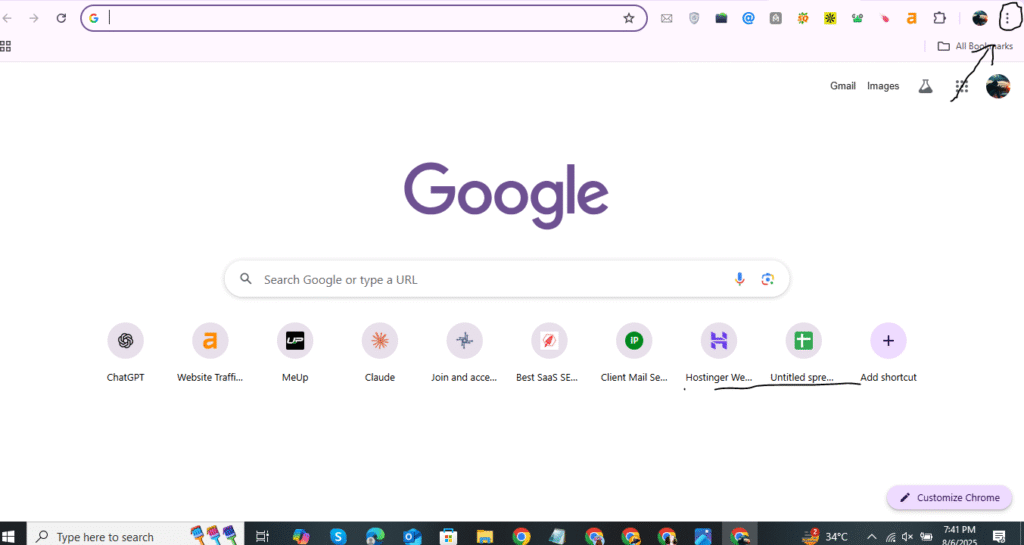
Don’t forget – your browser also saves its own history that’s separate from your Google account. You gotta clear that too.
- Open Chrome settings
- Click those three dots in the top right corner
- Go to “History” then “History” again
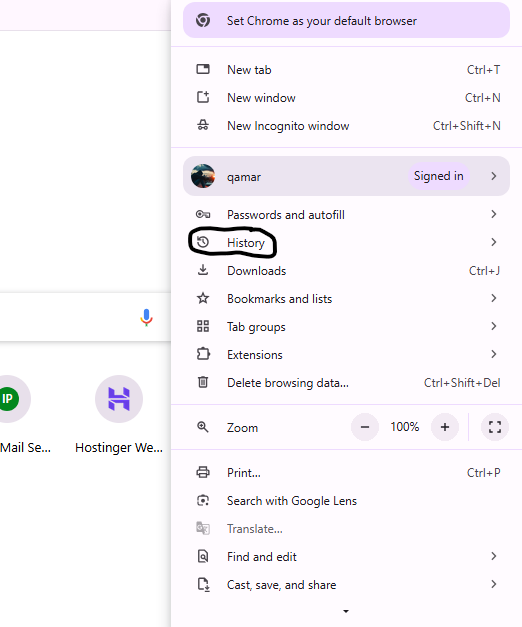
- Clear everything
- Click “Clear browsing data” on the left
- Pick “All time” from the dropdown
- Make sure “Browsing history” is checked
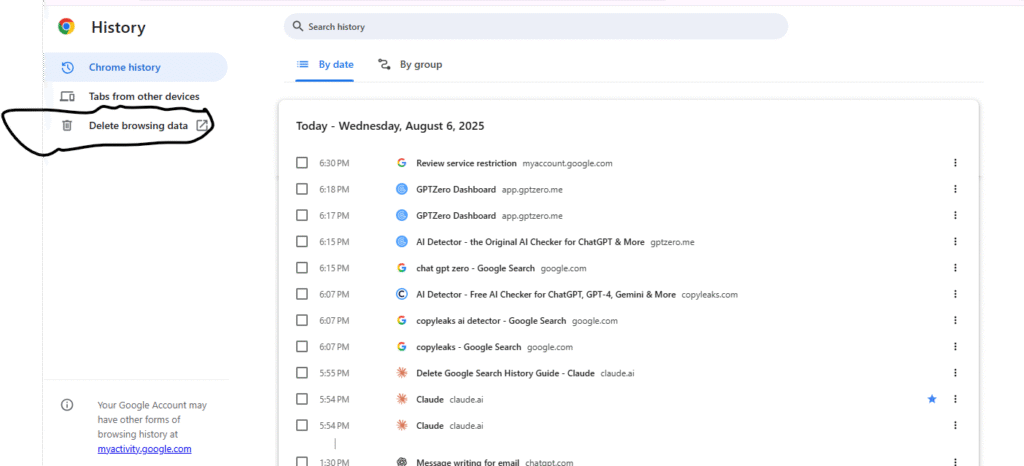
- Delete it
- Hit “Clear data”
- Wait for it to finish
Method 5: Delete Stuff on Your Phone
Your phone’s probably got search history too. Here’s how to clear it:
On Android:
- Open the Google app
- Tap your profile picture (top right)
- Go to “Search history”
- Tap “Delete all Search history”
- Say yes when it asks
On iPhone:
Pretty much the same thing:
- Open Google app
- Tap your profile picture
- Go to “Search history”
- Tap “Delete all Search history”
- Confirm it
- Some Extra Privacy Stuff You Should Know
Location History
Google also tracks where you go. To delete this:
- Go back to myactivity.google.com
- Click “Other Google activity”
- Find “Location History”
- Delete or turn it off
YouTube Searches
YouTube searches are separate from regular web searches:
- Go to myactivity.google.com again
- Filter by “YouTube”
- Delete your YouTube search history
What Happens After You Delete Everything?
When you delete your search history, here’s what you can expect:
- It disappears pretty quick: Your history will be gone from your view right away
- Less creepy ads: You’ll get fewer targeted ads based on your searches
- Generic search suggestions: Google won’t suggest searches based on what you looked up before
- Takes time to fully delete: Google says it might take a while to completely remove everything from their servers
Honestly, some data might stick around longer for “business reasons” (whatever that means), but at least it won’t be used to track you anymore.
Things to Keep in Mind
It’s Not Instant Everywhere
Some data takes time to delete from all of Google’s systems. Don’t panic if you still see some stuff for a while.
Account vs Browser
Remember, your Google account history and your browser history are different things. You gotta clear both if you want everything gone.
Searches When You’re Logged Out
If you search stuff while you’re not logged into Google, it doesn’t get saved to your history. But Google might still collect some anonymous data.
Other Ways to Stay Private
Use Private/Incognito Mode
- Chrome has Incognito mode
- Firefox has Private Browsing
- Safari has Private Browsing too
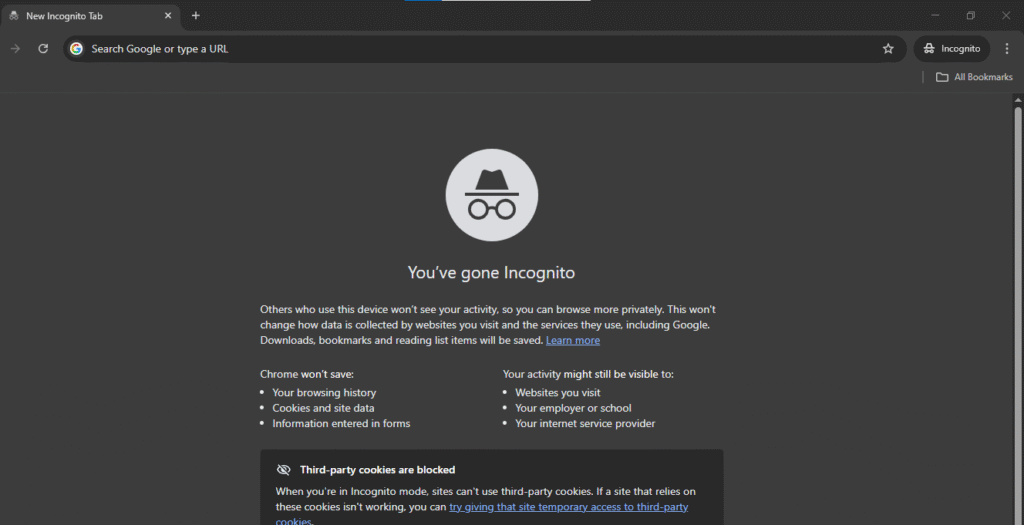
These don’t save your searches locally, but Google can still track you if you’re logged in.
Try Different Search Engines
Some search engines don’t track you at all:
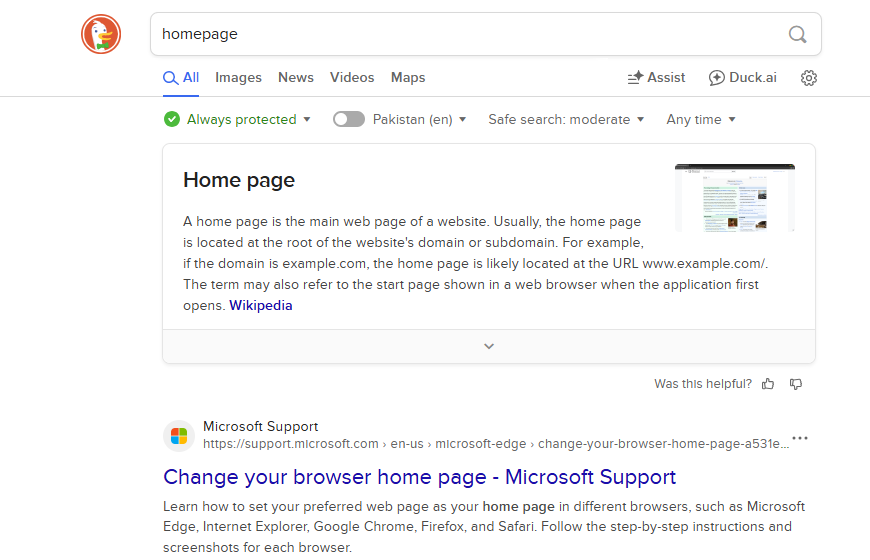
- DuckDuckGo (my personal favorite – no tracking at all)
- Startpage (gives you Google results without the tracking)
- Searx (open source and privacy focused)
Use a VPN
A VPN hides your location and encrypts your internet traffic. Makes it way harder for anyone to track what you’re doing online.
Common Problems and How to Fix Them
History Keeps Coming Back
If your deleted history shows up again, try this:
- Log out of Google on all your devices and log back in
- Clear your browser cookies and cache
- Turn off sync if you don’t want history shared between devices
Some History Didn’t Delete
If you still see some searches:
- Make sure you picked “All time” not just recent stuff
- Check that you selected “All products” not just specific ones
- Give it some time – Google’s systems need a bit to catch up
How to Keep Your Privacy Going Forward
Regular Cleanup
- Set a reminder to delete your history every month or so
- Use that auto-delete feature I mentioned earlier
- Check your privacy settings every once in a while
Keep an Eye on Your Digital Footprint
- Check what data Google has about you regularly
- Look at what apps are connected to your Google account
- Update your privacy settings when Google changes things (they do this a lot)
Final Thoughts
Look, deleting your Google search history is just one part of staying private online, but it’s a pretty important one. Your Google activity and browsing history say a lot about you — probably more than you realize.
The good news is that it’s not that hard to delete everything from your Google account and stop Google from tracking your searches. Just follow the steps I showed you above and you’ll be in much better shape.
Online privacy in 2025 isn’t a one-time thing though. You gotta keep at it. Google’s always finding new ways to collect data, so it’s important to regularly review your Google privacy settings and check your activity controls every few months.
Remember, this guide is current for 2025, but Google changes their interface pretty regularly. If something looks different when you try it, check Google’s help pages for updated instructions or visit TechnologyMunch.com for more tech privacy tips and how-tos.
Stay safe out there, and remember — your search history is nobody’s business but yours.